
Help Article
Community Airspaces
Learn how to install community airspace packs, open the Community Hub, and contribute edits
Community Airspaces
Explore > Airspaces > Community Airspaces
Community Airspaces are country or region packs maintained by the Gaggle community. They sit alongside official airspace packs, but they also include contribution and moderation tools for pilots who help improve the map.
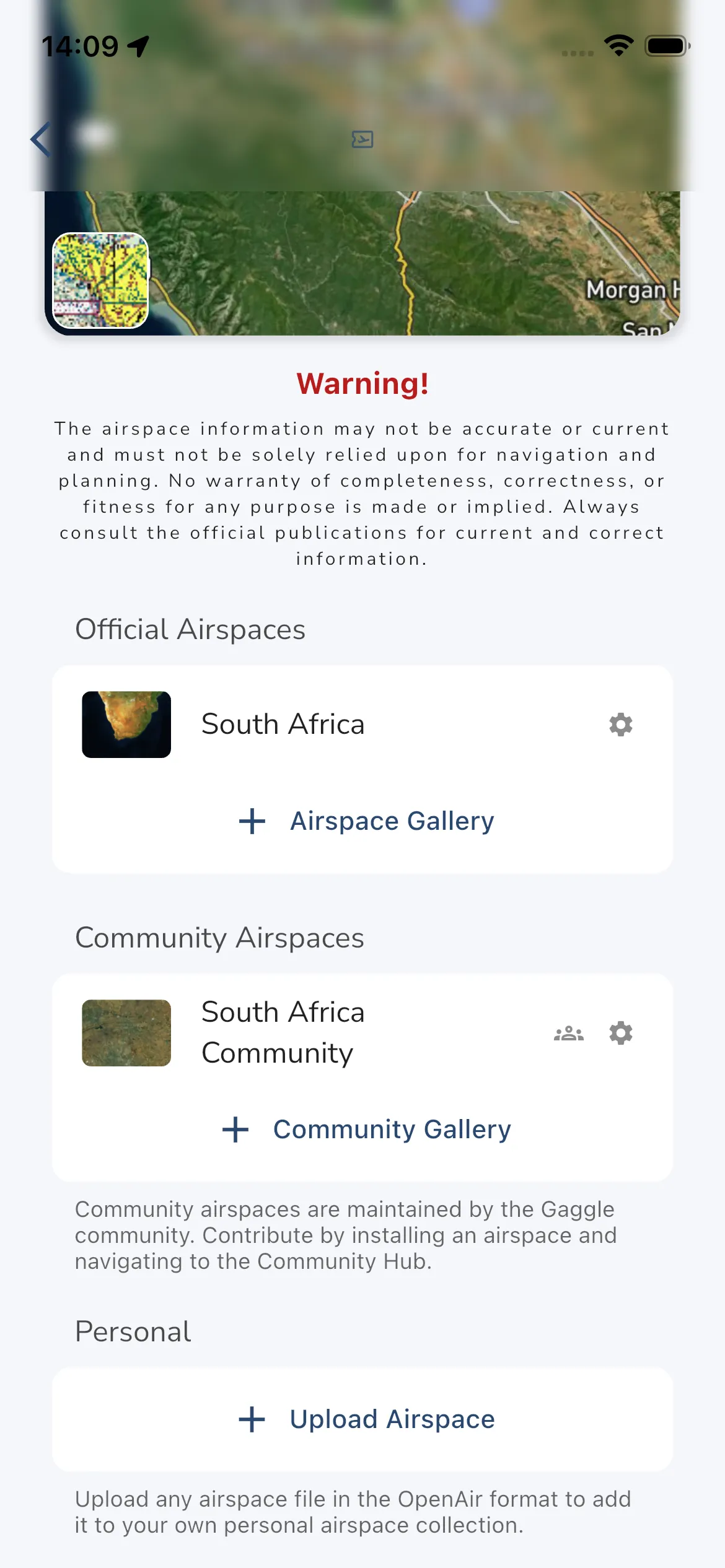
Install A Community Pack
To install a community airspace pack:
- Open Explore > Airspaces.
- Scroll to Community Airspaces.
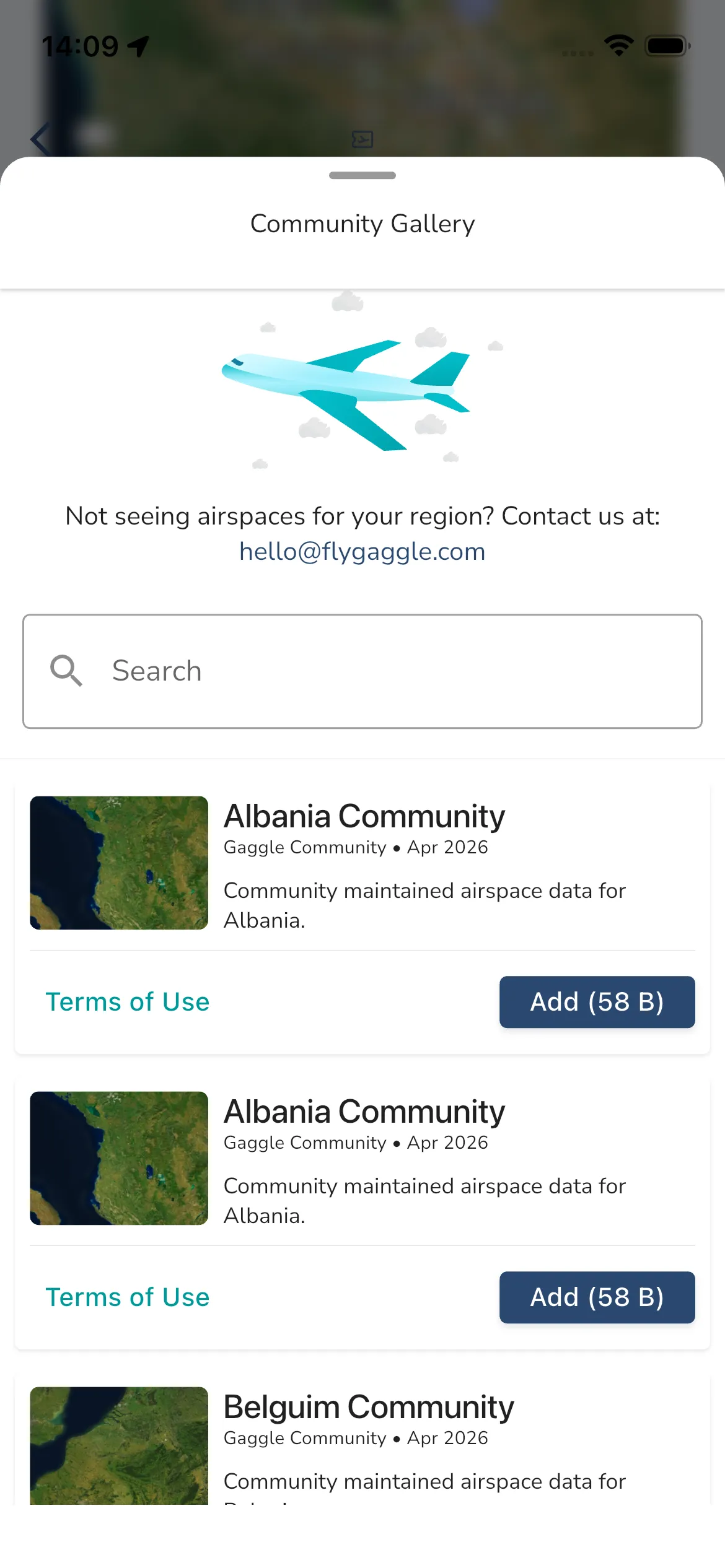
- Tap Community Gallery.
- Search or browse the available packs.
- Tap Add.
Installed packs appear back on the Airspaces page under Community Airspaces. Each row can show:
- The pack name and thumbnail.
- A Community Hub shortcut button.
- A Settings button.
If you remove a community pack, Gaggle records that as an opt-out so it does not get auto-added again from a linked official pack.
Open The Community Hub
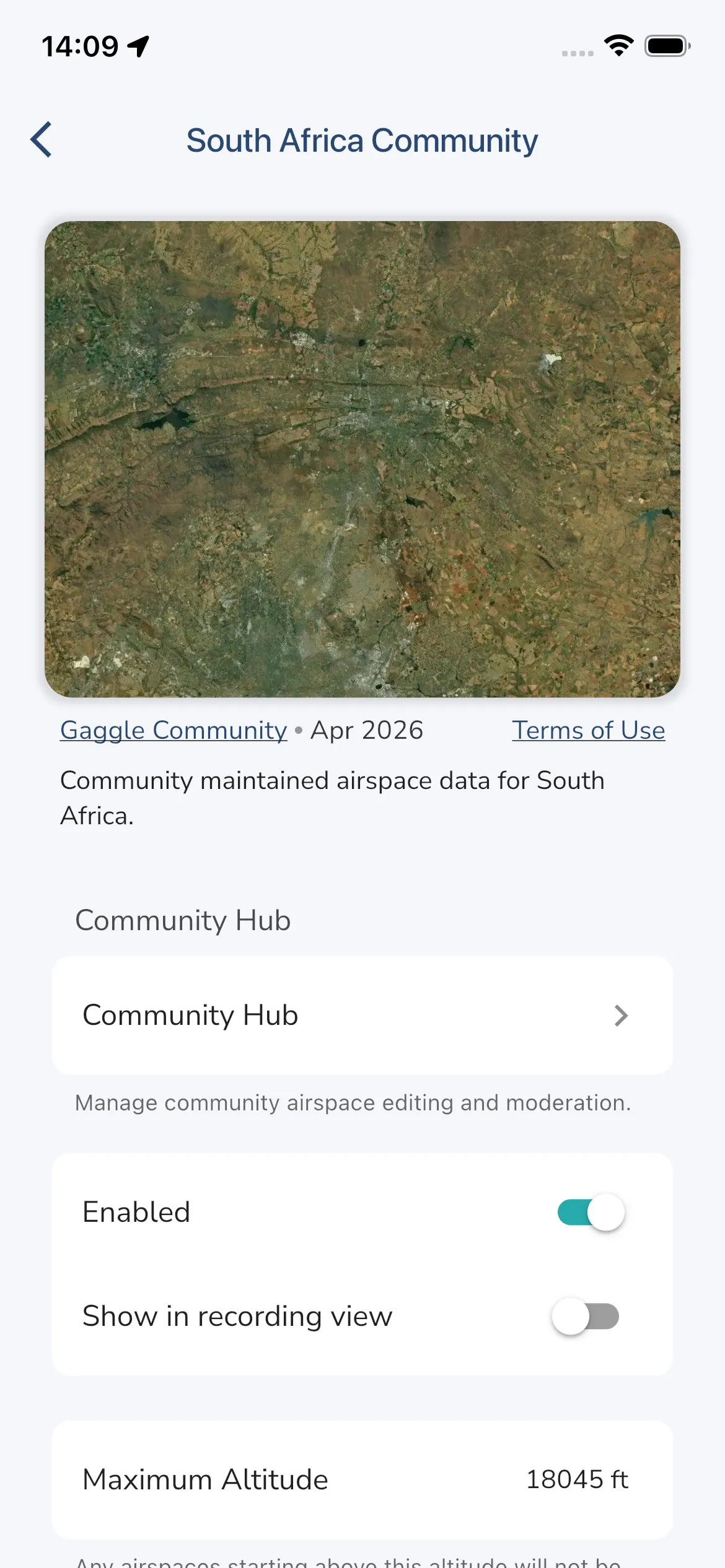
Open the installed community pack, then tap Community Hub. You can also use the group icon from the installed pack row.
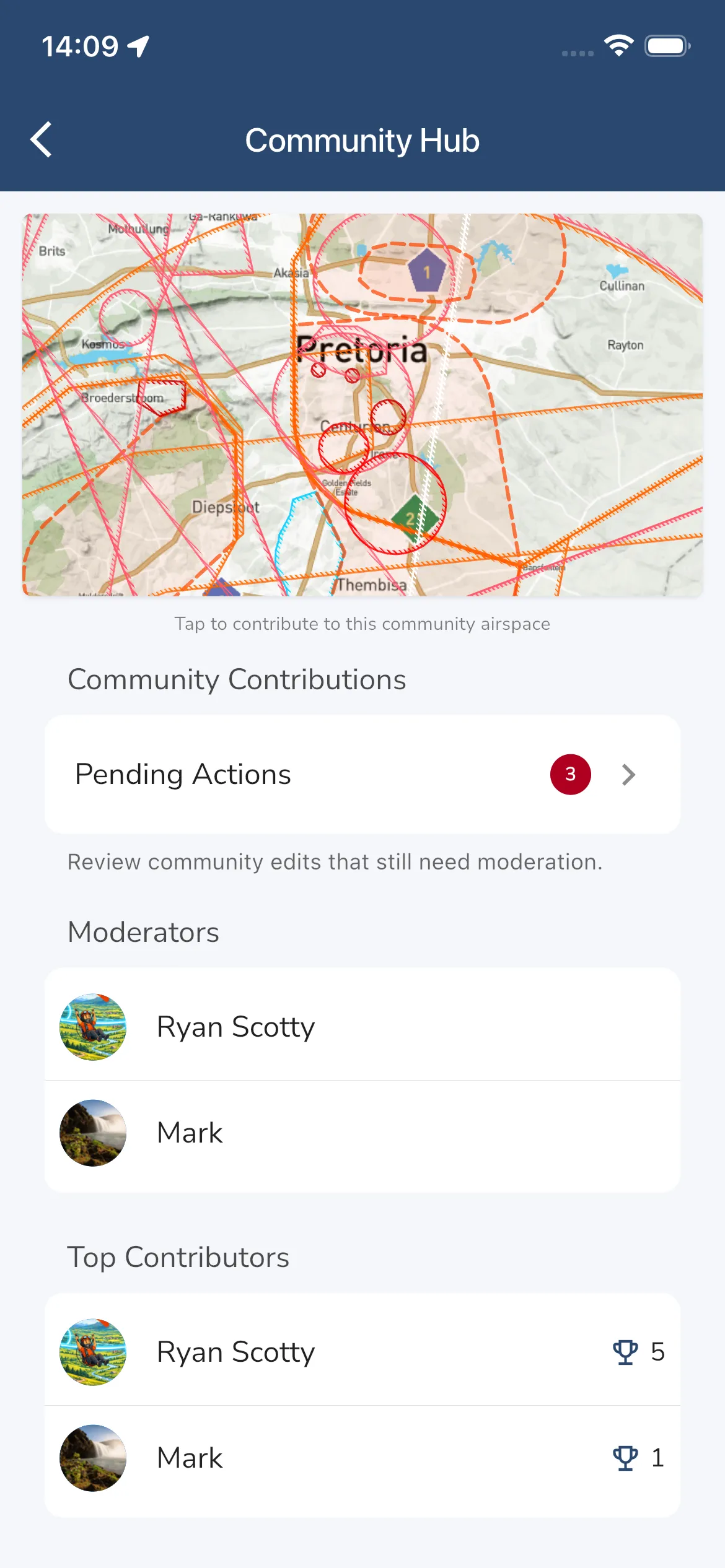
The Community Hub groups the contribution tools for that pack in one place:
- A map preview that opens the editor.
- Community Contributions for pending and rejected edits.
- A Moderators list.
- A Top Contributors list.
- A Volunteer as Moderator card when moderator places are available and you are eligible.
Community editing and moderation is subscription-gated. If your account does not include community-airspace contribution access, these pages do not open normally.
Review Pending Contributions
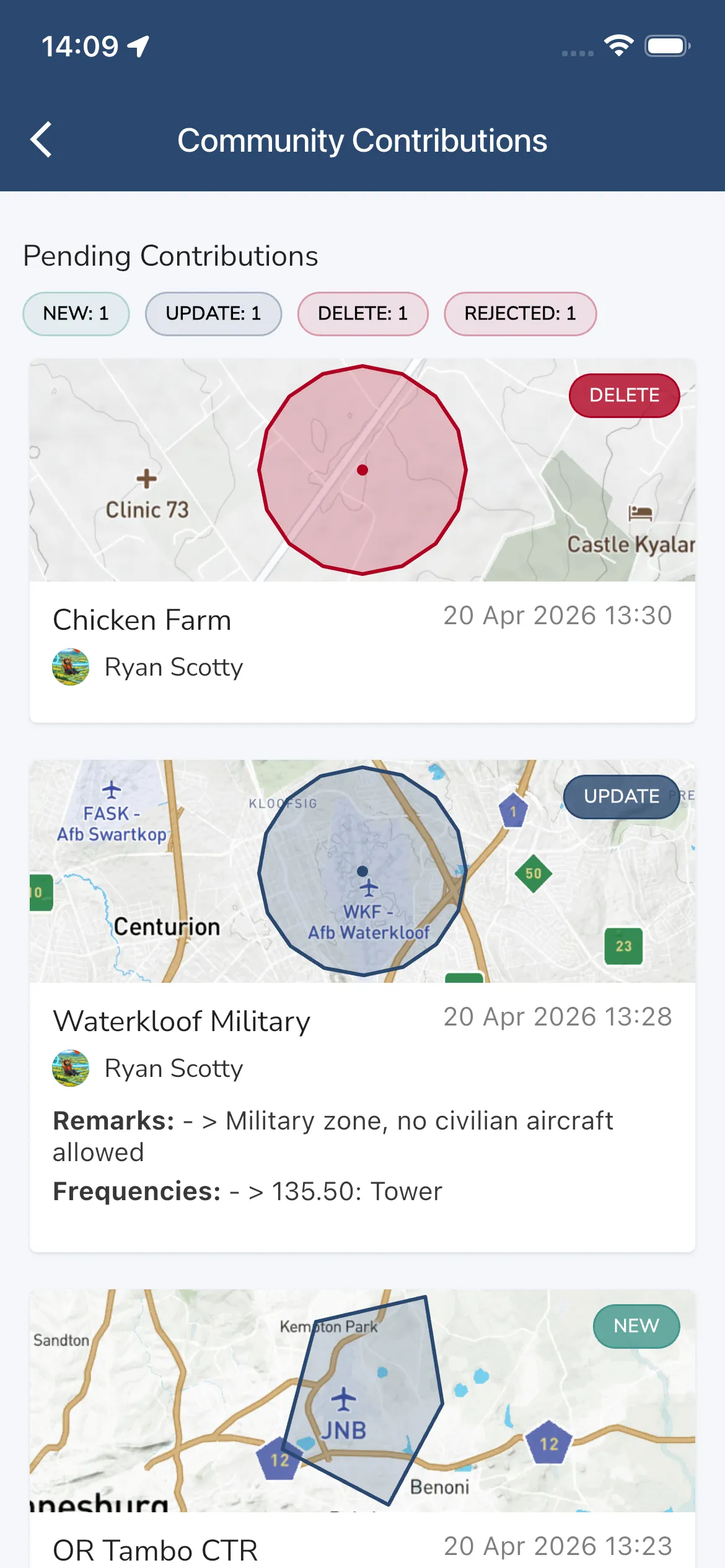
Tap Pending Actions from the Community Hub to open Community Contributions.
This page can show:
- Status chips for New, Update, Delete, and Rejected items.
- A map preview for each proposed change.
- Contributor name and submission time.
- Rejected items with the rejection reason.
If you are a moderator for that pack, pending cards also show Approve and Reject actions. Rejections require a comment.
Contribute In The Editor
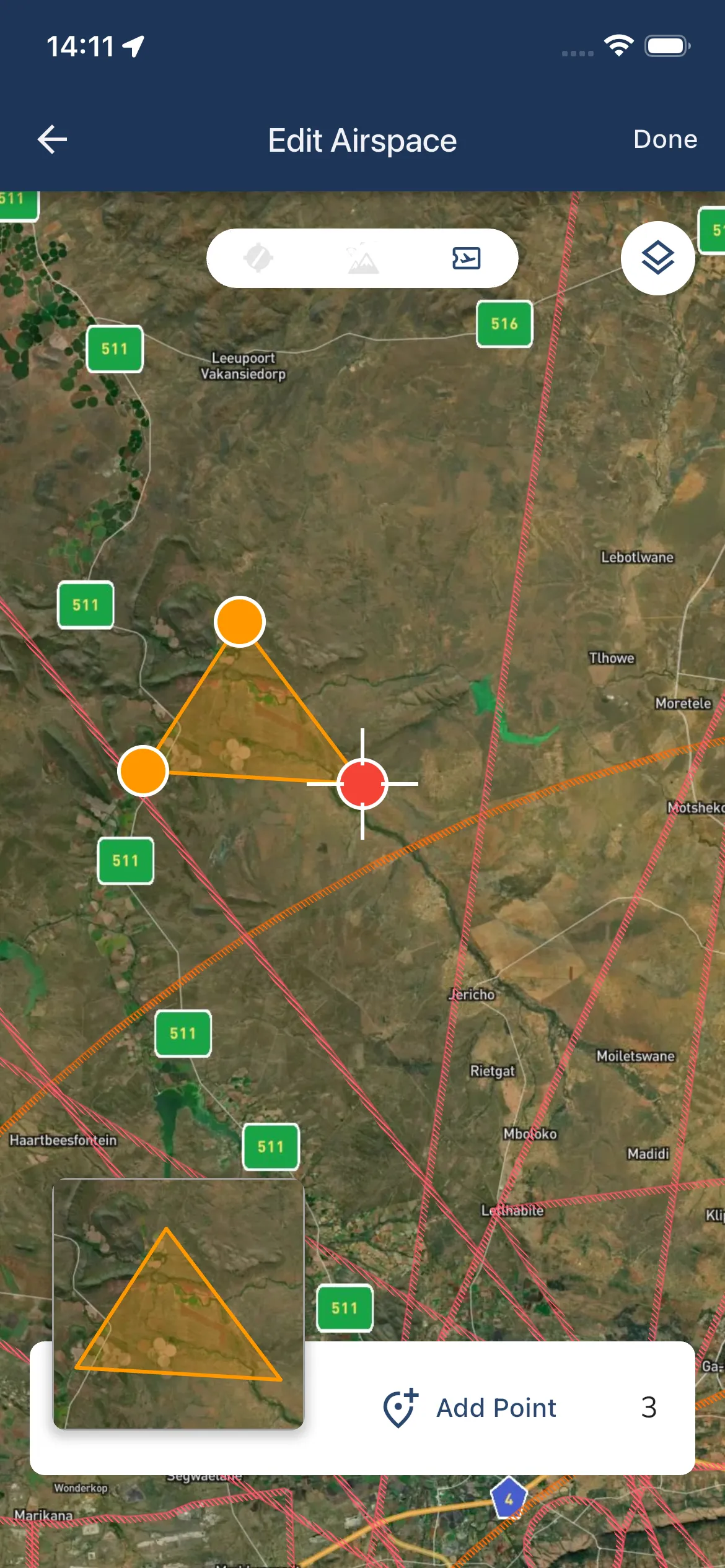
Tap the map preview in the Community Hub to open Edit Airspace.
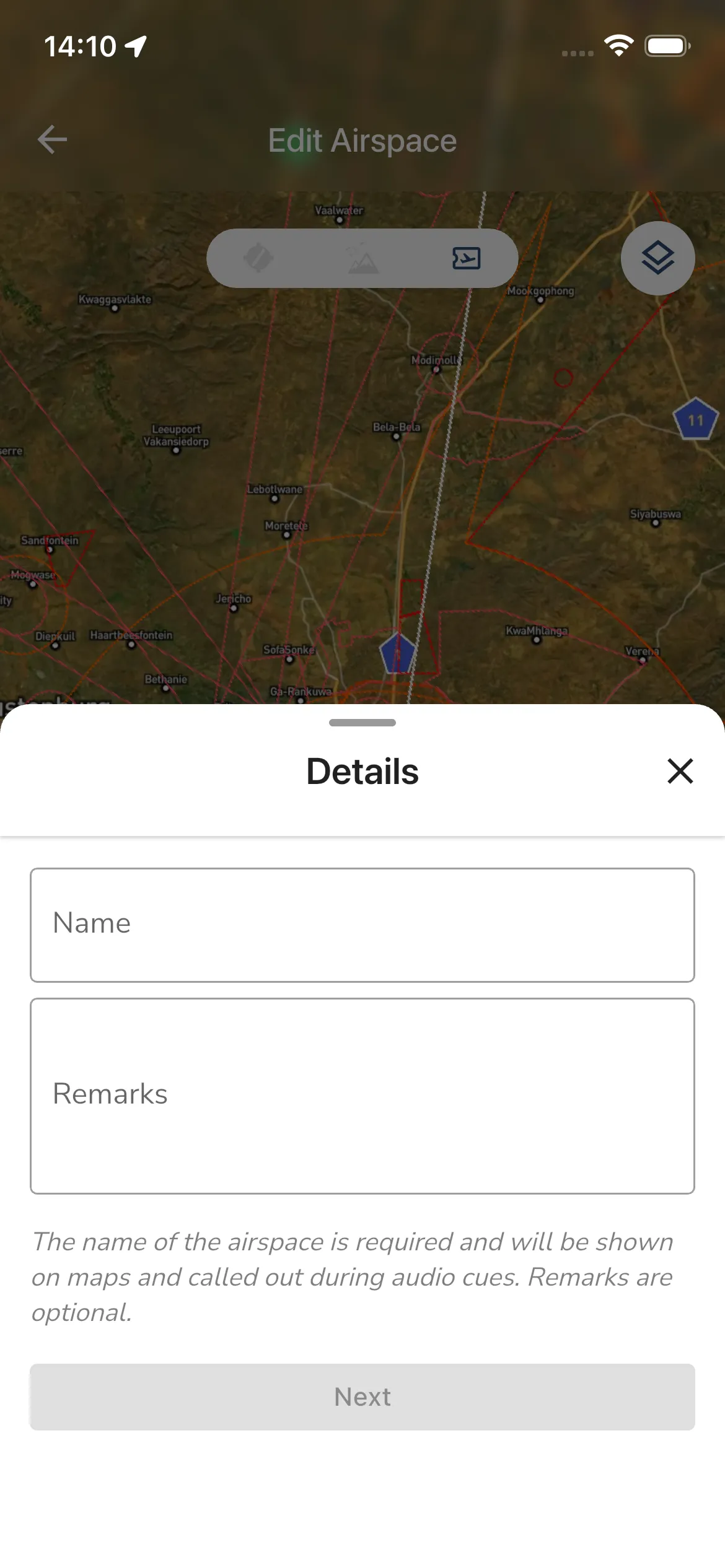
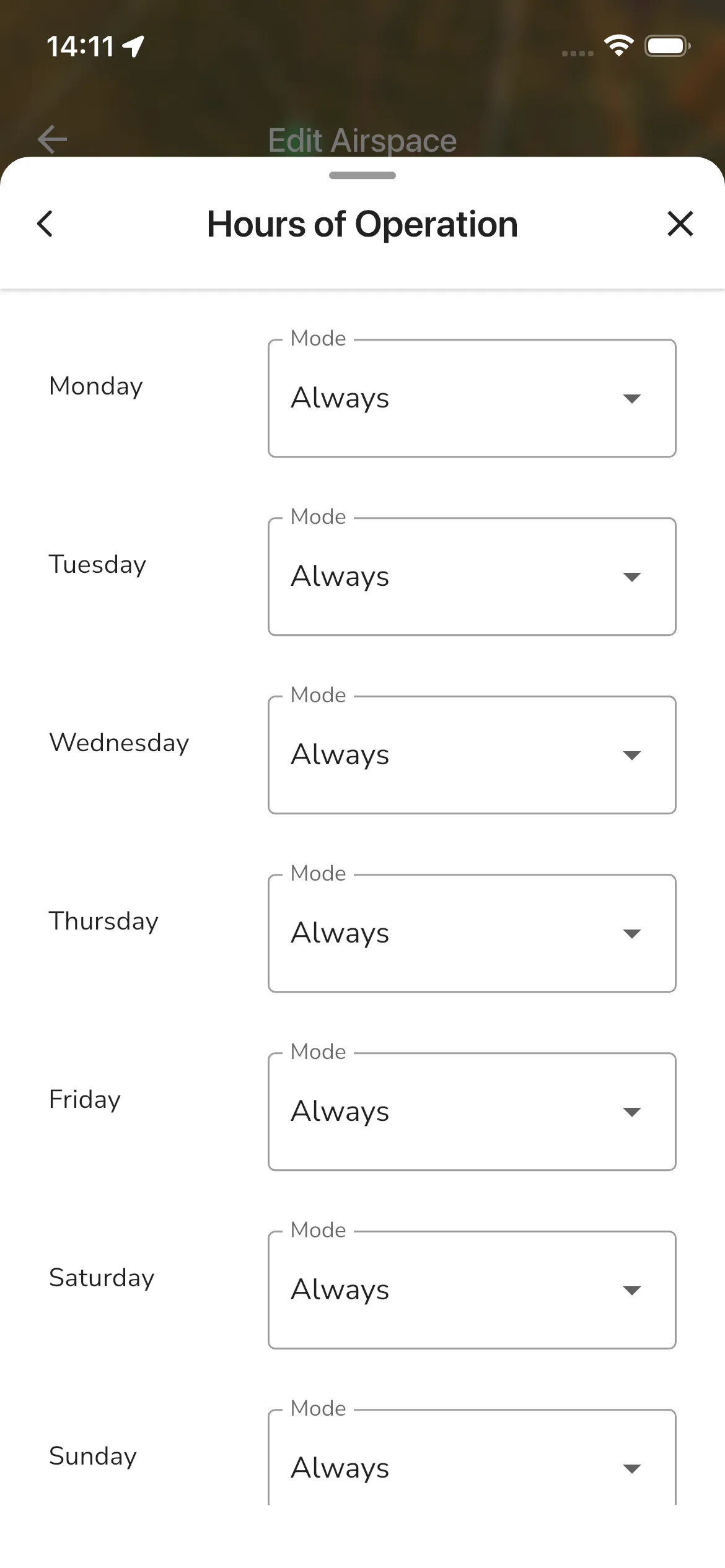
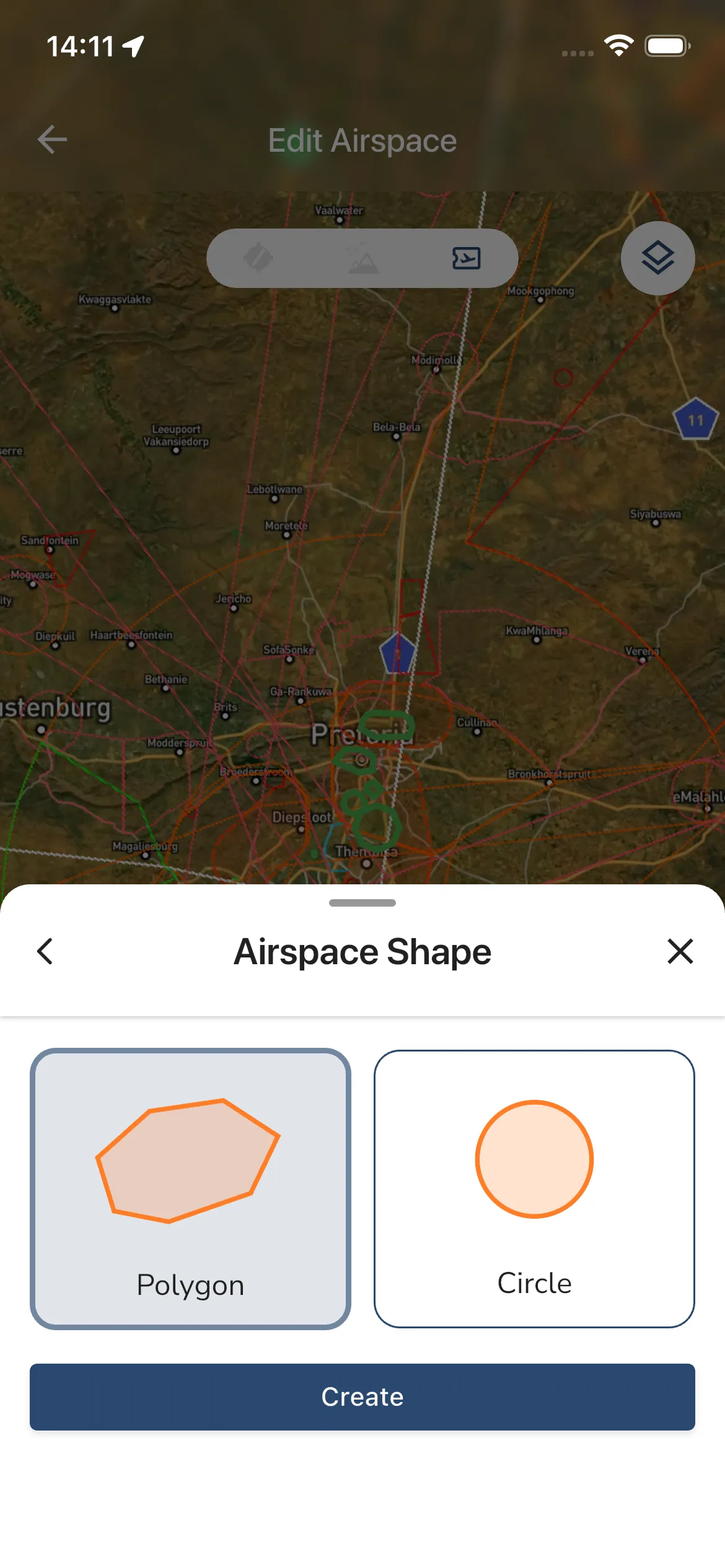
From there you can use the plus button to start a new contribution. The create flow currently walks through these steps:
- Details for the airspace name and optional remarks.
- Airspace Type.
- ICAO Class.
- Vertical Limits.
- Frequencies.
- Temporary Dates when the airspace is only active for a fixed period.
- Hours of Operation for recurring active hours.
- Airspace Shape to choose Polygon or Circle.
Once the shape is created, you can place points on the map and refine the geometry. The editor also lets you:
- Toggle reference layers such as airspaces, airports, and sites.
- Tap an existing community shape to open its summary.
- Choose Details, Edit Airspace, or Delete for an existing community shape.
When you leave with staged changes, Gaggle asks whether you want to save the changes request. Saving submits the create, update, or delete proposal for moderation.
Become A Moderator
If you are not already a moderator and the pack still has moderator space available, the Community Hub can show Become a Community Moderator.
Moderators can:
- Review pending contributions.
- Approve valid edits.
- Reject edits that need changes.
Helpful Notes
- Community Airspaces are separate from official airspace packs, even when they cover the same country.
- Installing an official pack can also install a linked community pack automatically.
- Removing a community pack opts you out of that auto-install until you add it manually again.
- If the contribution pages look empty or unavailable, check that your subscription includes community-airspace contributions.