
Help Article
View All Airspaces
Learn how to use the airspace viewer to see airspaces around you
Airspace Viewer
Explore > Airspaces > Tap the map preview
If you want to check airspaces before a flight, open the Airspaces page and tap the map preview.
This opens the 2D Airspace Viewer, where the app shows airspaces under the crosshair.
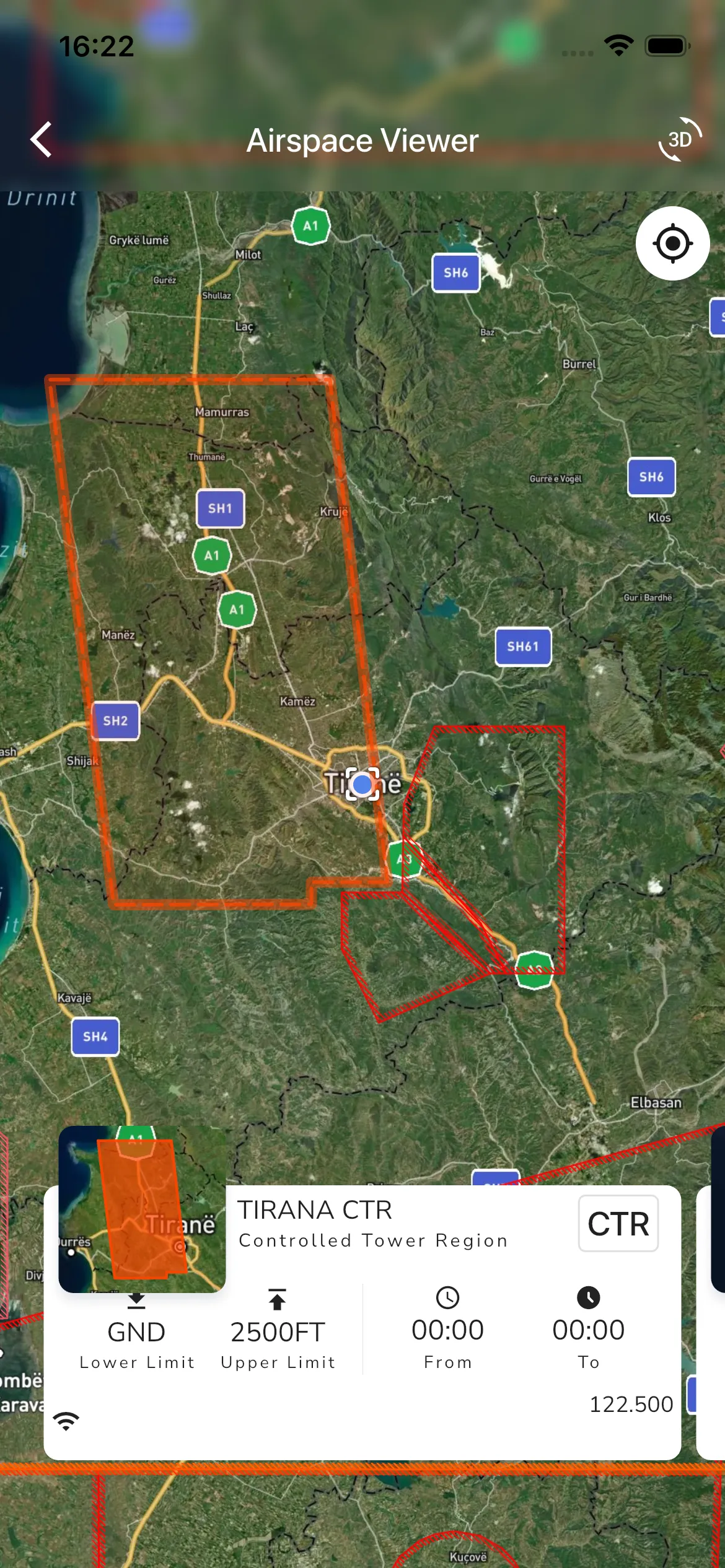
In the 2D viewer you can:
- Tap anywhere on the map to move the crosshair.
- Swipe the card pager at the bottom to move through airspaces at that point.
- See key details for the selected airspace, including class, limits, and active time when available.
- Use the GPS button to quickly re-center on your location.
If your account has 3D airspace access, the viewer also shows:
- A mini 3D preview in the top-left.
- A 3D action button in the top-right.
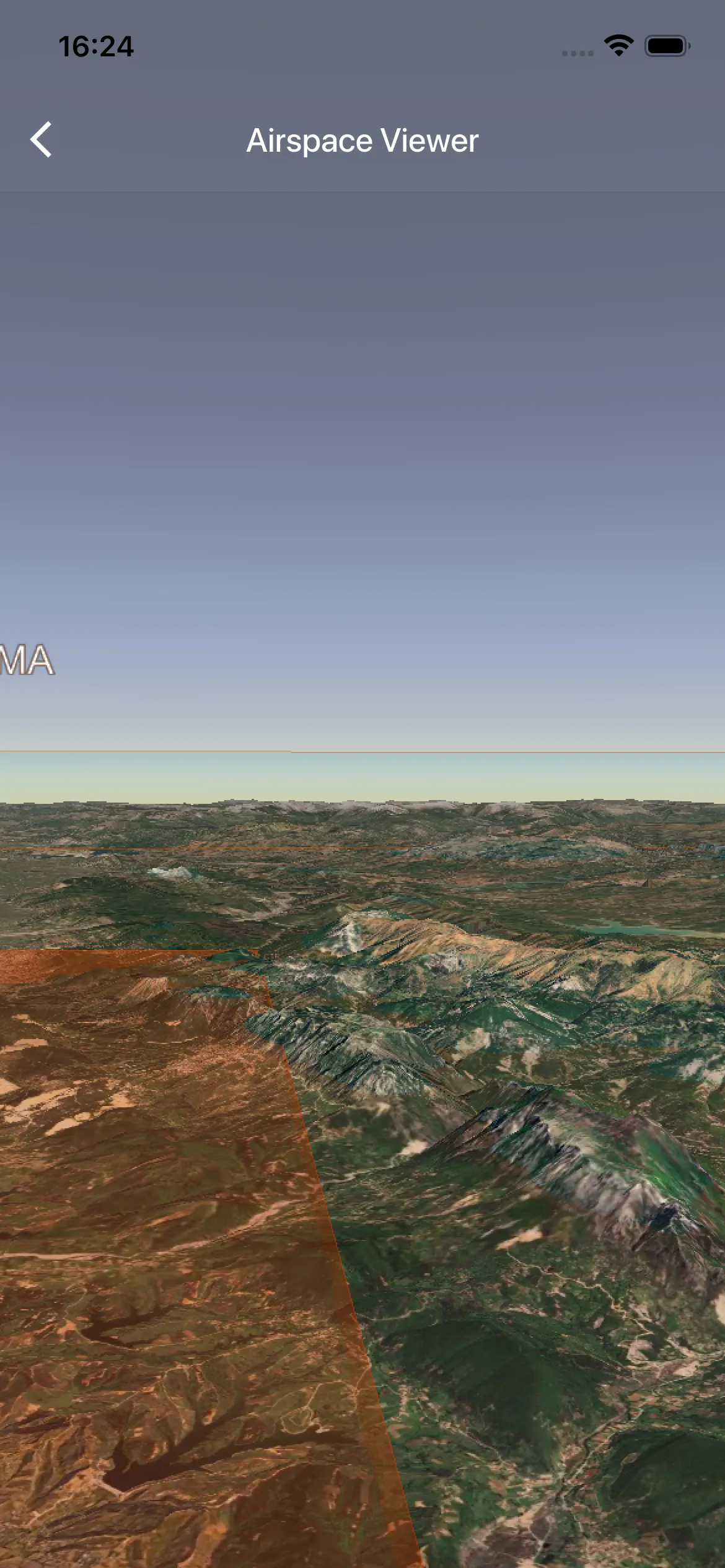
Tap the mini 3D preview or the 3D action button to open the full 3D airspace view.
In the full 3D view, you can rotate and inspect airspace geometry in more detail.
If you are flying in the USA and sectionals are available for your location, you can also open the Sectional map from the Airspaces home screen.
The Airspaces home page also separates installed packs into Official Airspaces, Community Airspaces, and Personal uploads, so you can manage the source of the airspace data before opening the viewer.